FuelMetric Pro
User guide · Chapter 1 of 8
Install and first start
Install the app, enter your company and site, and use the calculator.
Install
Windows 10 or 11: download the installer from the download page and open it. If Windows shows "Windows protected your PC", choose More info, then Run anyway. No administrator rights are needed.
Android: the app is in testing on Google Play. Email support@fuelmetricpro.com with your Google account to join.
First start
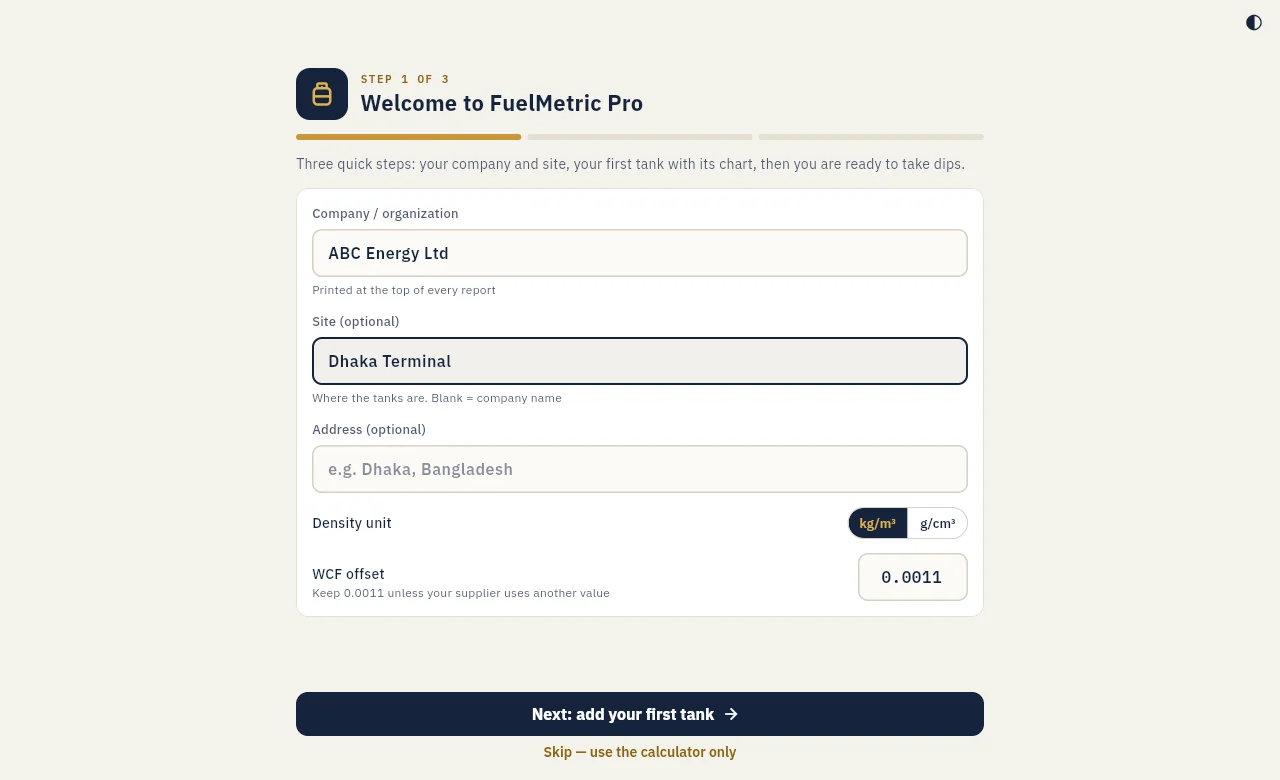
The first start takes three steps: your company and site, your first tank with its chart, then the first dip.
- Company / organization is printed at the top of every report.
- Site is where the tanks are, for example a plant or depot. Leave it blank to use the company name.
- Address is optional and is shown on reports.
- Density unit: kg/m³ or g/cm³, as your laboratory reports it.
- WCF offset: keep 0.0011 unless your supplier uses another value.
Choose Next: add your first tank and continue with Tanks and calibration charts. To look around first, choose Skip, use the calculator only; you can set up the site later in Settings.
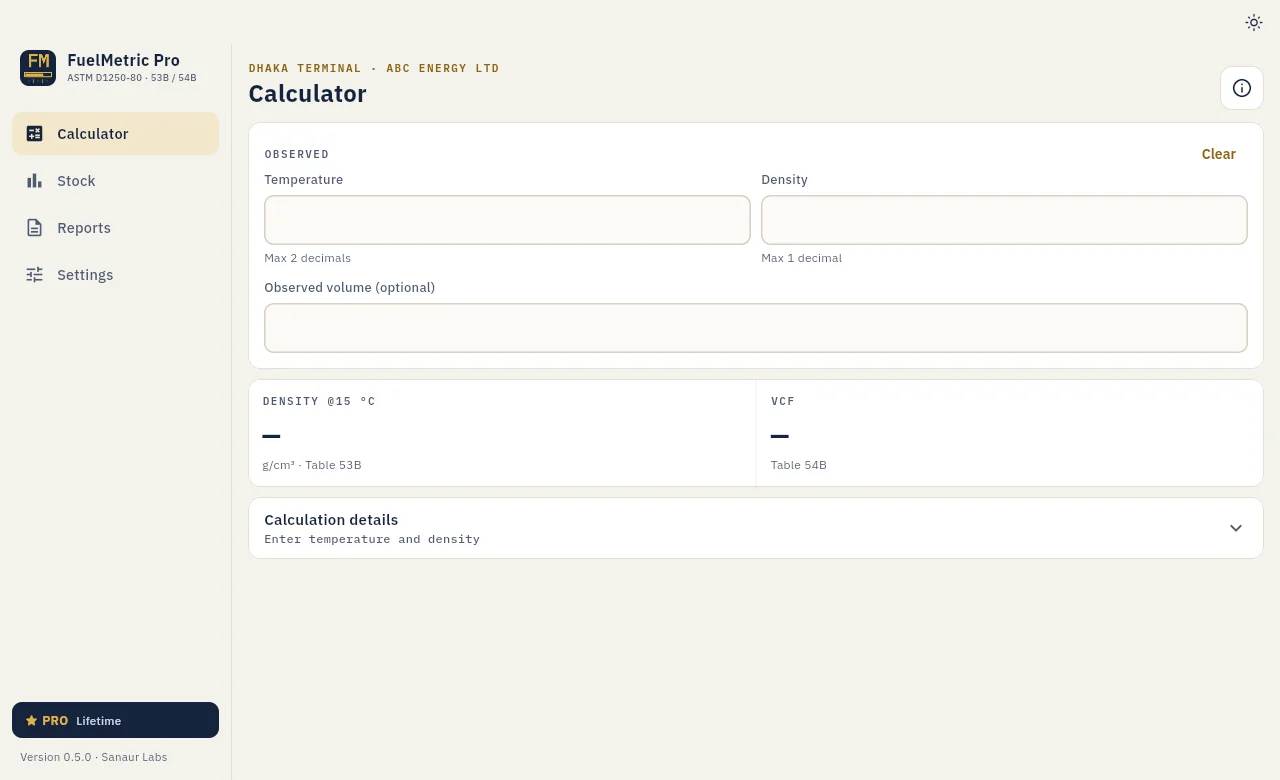
Calculator
The Calculator page needs no tank. Enter the observed temperature and density to get the density at 15 °C (Table 53B) and the VCF (Table 54B). Add an observed volume to get the net volume at 15 °C and the quantity in metric tons. Calculation details shows the table row and column used.